Documentation
DailyDeck MCP server: connect Claude Code, Cursor and Codex to your tasks
DailyDeck is a personal task manager with a built-in MCP server. Connect Claude Code, Claude, Cursor, Codex or any other MCP client and your agent can capture tasks, read your day and hand work back for review, while you stay the one who owns the plan.
- Server URL
- https://www.dailydeck.ai/mcp
- Transport
- Streamable HTTP
- Sign-in
- OAuth 2.1 with dynamic client registration, so there is no API key to paste. Personal access tokens work too.
- Tools
- 99 tools for tasks, projects, lanes, reminders, notes and daily goals
- Plan
- Included on every plan, Free included
Connect Claude Code
Add the server once at user scope, so it is available in every repository rather than one checkout:
claude mcp add --transport http --scope user dailydeck https://www.dailydeck.ai/mcpStart Claude Code, run /mcp, choose dailydeck and sign in. Your browser opens the DailyDeck sign-in; approve access and return to the terminal. Check the connection any time with claude mcp get dailydeck.
Connect Claude (desktop and web)
On an individual Pro or Max plan, open Customize, then Connectors, click + and choose Add custom connector. Name it DailyDeck and paste the server URL:
https://www.dailydeck.ai/mcpOn Team or Enterprise, an owner first adds DailyDeck under Organization settings, then Connectors, using Add, Custom, then Web. Members then open Customize, then Connectors, and choose Connect on DailyDeck.
Connect and approve the DailyDeck sign-in. Enable the connector for a conversation using +, then Connectors. The same connection works on the desktop app and on the web.
Connect Cursor
Add DailyDeck to ~/.cursor/mcp.json to make it available in every project, or to .cursor/mcp.json in one project:
{
  "mcpServers": {
    "dailydeck": {
      "url": "https://www.dailydeck.ai/mcp"
    }
  }
}
Cursor asks you to sign in the first time it connects. The server then appears under MCP in Cursor's settings.
Connect Codex
Add the server to ~/.codex/config.toml:
[mcp_servers.dailydeck]
url = "https://www.dailydeck.ai/mcp"
Then sign in once from the terminal:
codex mcp login dailydeckOther MCP clients
Any client that speaks Streamable HTTP and OAuth can connect with the server URL alone. The client discovers the authorization server from https://www.dailydeck.ai/.well-known/oauth-protected-resource/mcp and registers itself, so there is nothing to configure in DailyDeck first. A client that cannot run OAuth can send a personal access token instead, described below.
Authentication and access tokens
OAuth is the default and the one to use in an interactive client. It signs the client in as you, with the same access you have in the app. Disconnect a client any time under Settings, then AI Integrations.
Personal access tokens suit headless agents, scripts and anywhere you want a connection that can do less. Create one under Settings, then AI Integrations, then Access Tokens. Pick one workspace or all of them, choose its scopes, and copy it: it is shown only once. Tokens look like dd_pat_….
| Scope | Grants |
|---|---|
| tasks:read | View tasks |
| tasks:write | Create, update and delete tasks |
| projects:read | View projects |
| projects:write | Create, update and delete projects |
| reminders:read | View reminders |
| reminders:write | Create, update and delete reminders |
| notes:read | View notes |
| notes:write | Create, update and delete notes |
| goals:read | View daily goals |
| goals:write | Create, update and complete daily goals |
| profile:read | View your profile |
| organizations:read | View your organizations |
| support:read | View your support requests |
Sent as the only bearer credential to the MCP server, a token lists just the tools its scopes cover. A token holding only :read scopes is therefore a read-only connection that can see your deck but not change it:
claude mcp add --transport http --scope user dailydeck-readonly https://www.dailydeck.ai/mcp \
  --header "Authorization: Bearer ${DAILYDECK_READONLY_PAT}"
The same tokens authorize the REST API under https://www.dailydeck.ai/api/mcp:
# List in-progress tasks (needs tasks:read)
curl "https://www.dailydeck.ai/api/mcp/tasks?status=in_progress" \
  -H "Authorization: Bearer dd_pat_xxx_yyy"

# Create a task (needs tasks:write)
curl -X POST https://www.dailydeck.ai/api/mcp/tasks \
  -H "Authorization: Bearer dd_pat_xxx_yyy" \
  -H "Content-Type: application/json" \
  -d '{"title": "Review the deploy checklist", "priority": "high"}'
What you can ask
Once connected, plain requests are enough. These are the ones people use most, with the exact prompt and the tools the agent calls to answer it. Screenshots show examples from a test account.
Capture a task from Claude Code without leaving the terminal
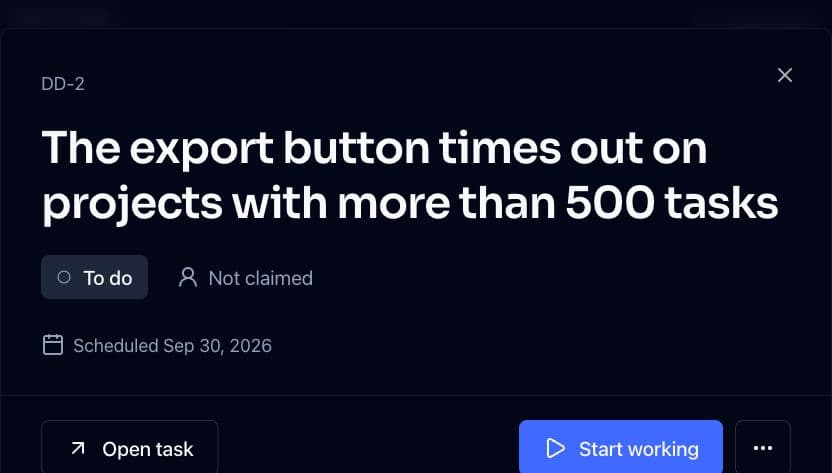
Capture this in DailyDeck: the export button times out on projects with more than 500 tasks
The task lands in your DailyDeck inbox with the title you gave it, so a bug you notice mid-session is recorded before you lose the thread. Capture records the task without running analysis. Ask for triage suggestions when you are ready to plan it.
Tools called: create-task
Ask your agent what to work on today
What's on my DailyDeck deck today?
The deck is your committed work for today in priority order, with one clear next action at the top, the same deck you see in the app. Anything overdue, slipped past its planned day or urgent comes back alongside it.
Tools called: get-deck, get-attention

Triage your inbox from the chat
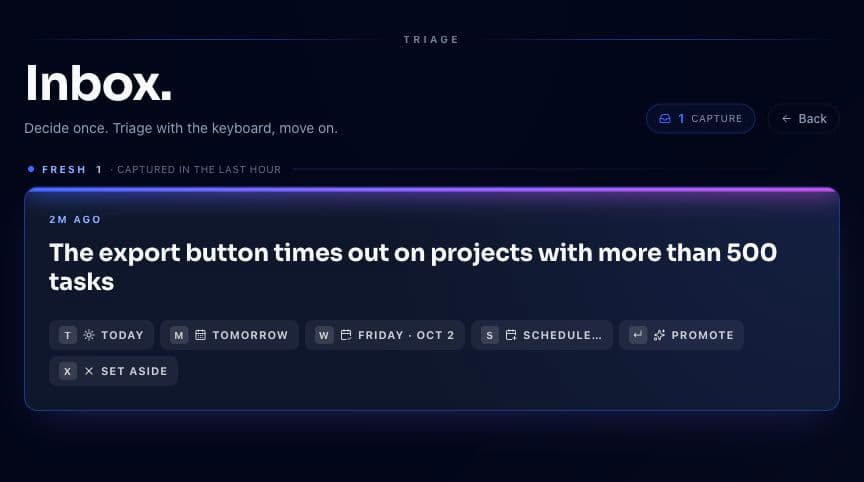
Triage my DailyDeck inbox
The agent reads your untriaged captures and requests analysis for tasks that do not have suggestions yet. You say which suggestions to accept, and only the fields you approve are written.
Tools called: review-inbox, analyze-task, apply-suggestion, reject-suggestion
Track the work you delegate to AI agents
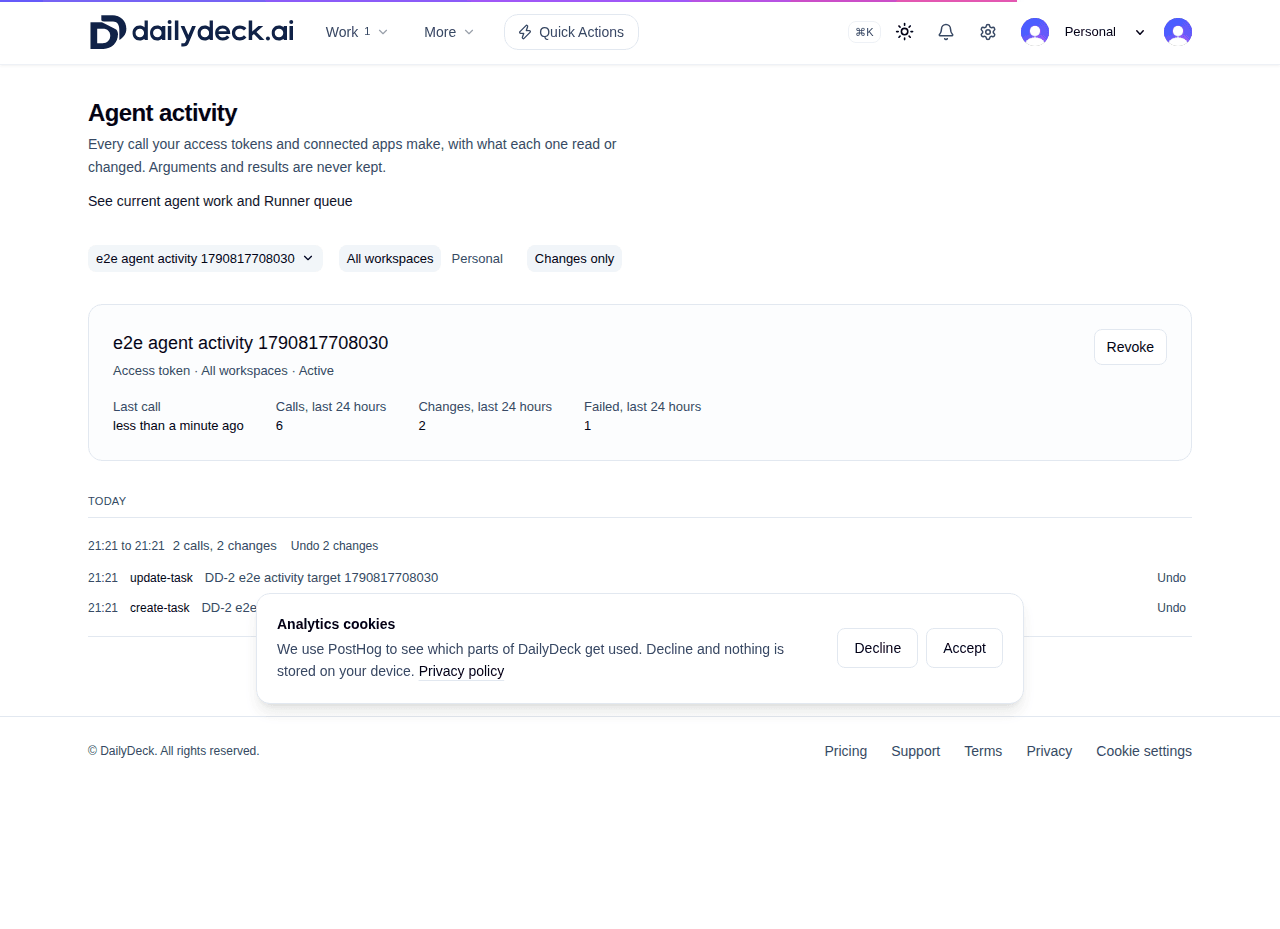
What did my agents change in DailyDeck today?
Every change made through the MCP server is attributed to the connection that made it, so you can read back what each agent did, call by call. Tracked task changes can be undone in DailyDeck.
Tools called: get-agent-activity
Review what your agents handed back
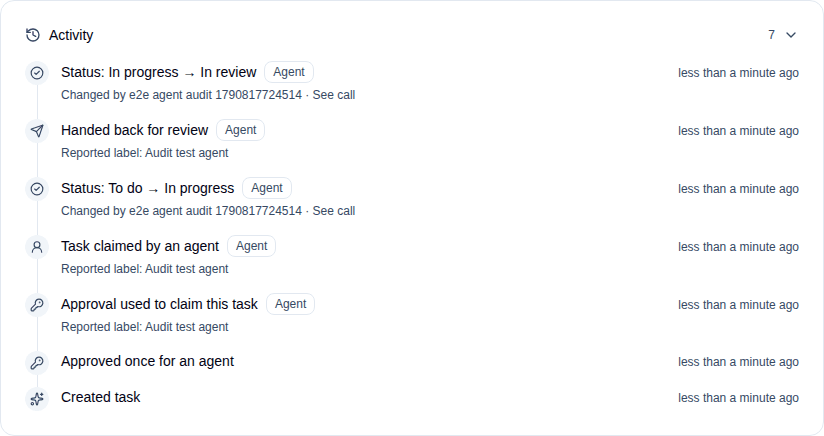
What is waiting for my review in DailyDeck?
Work an agent finishes comes back to you in review rather than marked done. The agent lists those tasks with their notes and links, so you can check the pull request before you complete the task yourself.
Tools called: list-tasks, get-task, list-notes
Troubleshooting
- 401 Unauthorized
- The OAuth session expired or the token was revoked. Sign in again from the client (
/mcpin Claude Code,codex mcp login dailydeckin Codex), or create a new token. - A tool is missing or reported as not found
- On a token connection the tool list follows the token's scopes. Add the scope the tool needs, or use OAuth.
- 403 Forbidden on a task or project
- The token is limited to one workspace and the item belongs to another, or the token lacks the scope for that action.
- The client never opens a sign-in window
- Check that the URL is exactly
https://www.dailydeck.ai/mcpand that the client supports remote HTTP servers. Restart the client after changing its configuration.

